Compare job search tracker apps by free plans and prices
A job tracker is worth using once keeping details in your head starts costing you follow-ups. Manual tracking can break down at 20 or more applications, so the best app to organize your job search is one that makes applications, interview stages, deadlines, and next steps easy to manage.
You may be weighing a spreadsheet against a dedicated app. The right choice depends on your workflow: a free plan may cover basic tracking, while a subscription can make sense if its extra tools solve a real problem.
This comparison will help you find a tracker that fits your needs. You’ll see how about ten options compare on free plans, subscription pricing, and practical tracking features, then learn how to choose based on your application volume and preferred workflow.
Key Takeaways
- Compare each tracker’s free plan and subscription features against the tools you’ll actually use.
- Choose an app that fits your application volume, preferred workflow, and devices.
- Check whether you can record application stages, follow-ups, and deadlines in one place.
- Use the decision guide to narrow the options to a tracker that helps you stay organized without adding extra work.
- Pair application tracking with tailored resume and interview preparation to manage both sides of your job search.
Free plans and subscription pricing
A free tracker may be enough for recording company names, role titles, and application dates. Consider a paid plan when it adds a feature you’ll actually use, such as reminders or saved documents. The best choice depends on your workflow, not the length of a pricing page’s feature list.
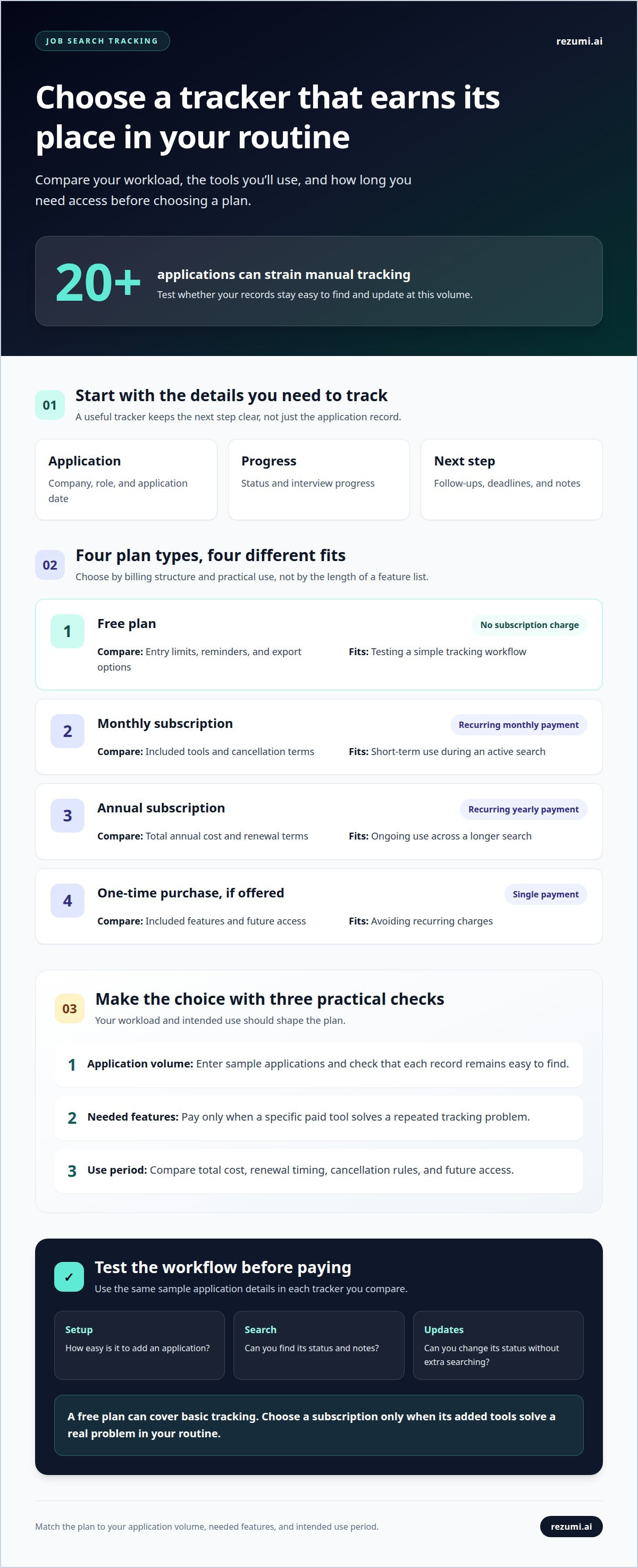
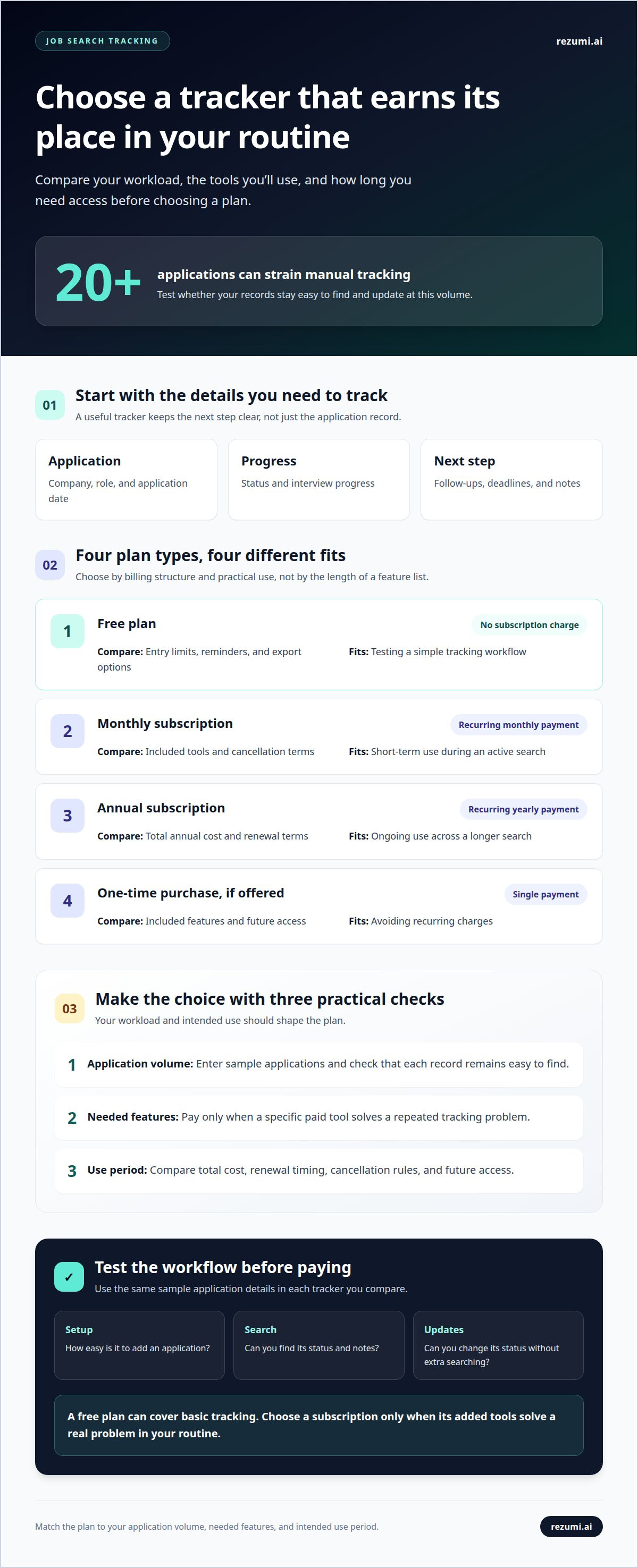
Start with your expected workload. Manually tracking applications can break down at 20 or more applications, so test whether a free plan keeps your records usable at that volume. Add a sample entry for each application, then see whether you can find its status, next step, and notes without extra searching.
Compare plans by billing model and practical fit. Subscription costs can depend on the billing cycle and included features, so compare the total cost for the period you expect to use the app. Don’t choose based only on a discount or a long feature list.
| Option | Cost structure | Compare | Best fit |
|---|---|---|---|
| Free plan | No subscription charge | Entry limits, reminders, export options | Testing a simple tracking workflow |
| Monthly subscription | Recurring monthly payment | Included tools and cancellation terms | Short-term use during an active search |
| Annual subscription | Recurring yearly payment | Total annual cost and renewal terms | Ongoing use across a longer search |
| One-time purchase, if offered | Single payment | Included features and future access | Avoiding recurring charges |
Use this quick comparison before choosing:
- List your must-haves. Include application records, follow-up reminders, and a way to review interview progress.
- Test the free tier. Enter sample applications and check how easily you can update their status.
- Identify the paid feature you need. For example, pay only if a specific feature solves a repeated tracking problem.
- Review the billing terms. Compare renewal timing, payment frequency, and cancellation rules before subscribing.
If a trial is offered, use it to test the workflow before paying. Enter the same sample application details in each tracker you compare. This makes it easier to assess setup time, search, and updates consistently.
Consider what you’ll do with your records when your search ends. If you plan to reuse them for future applications, prioritize continued access and export options. If you’ll stop using the app, a shorter billing commitment may suit you better. Choose a plan that matches your application volume, required features, and intended use period.
Use a free plan for basic tracking, and subscribe only when a paid feature earns a regular place in your routine.
Choosing a tracker for different job-search needs
Choose a tracker that fits your search habits and target roles. Your priorities may differ if you’re changing careers, applying across fields, or protecting sensitive information.
Features and Ease of Use
The most useful features depend on your workflow. If you’re switching careers, custom labels can group roles by industry or skill area. For similar positions, a resume-version field can help you keep materials aligned with each target. Choose a layout you can scan quickly, then remove fields you don’t use.
To assess data protection, read the app’s privacy policy and review its account controls. Check how to manage stored resume files, control sharing, and delete information you no longer want saved.
Application and Interview Tracking
Choose a tracker that helps you prioritize, not just collect role details. For example, mark a role as high priority when it matches your preferred location and responsibilities. Set aside time each week to decide which applications need preparation, research, or follow-up. This keeps your attention on deliberate next steps.
Organize your search by grouping roles by target field or priority, then set a regular review time. Use each review to choose the next task for your strongest opportunities.
Mobile and Desktop Availability
Let your work style guide your device choice. If you capture ideas while commuting, a phone-friendly interface can make quick notes easier. If you compare role requirements or plan a career change, a larger desktop view may help you review details together. Test the same task on the devices you use most.
Industry-specific organizers are available, but a flexible tracker can also support a focused search. For U.S. roles, use labels for field, location, and work arrangement so you can sort opportunities by what matters to you.
Match your setup to your search:
- Changing fields: Use labels for target industries and transferable skills.
- Applying across locations: Add a location field that matches your search priorities.
- Managing private details: Review sharing and deletion controls before saving resume information.
- Planning around a busy schedule: Choose a device and layout that make short review sessions practical.
If you’re also preparing application materials, compare career platform pricing separately from your tracker choice.
How do job search tracking apps compare on features and ease of use?
Compare how each app handles setup, customization, search, and review. These differences determine whether the tool remains useful after the initial setup.
Start with setup. Some apps guide you through ready-made fields, while others let you build a workspace from scratch. Guided setup can get you started quickly; custom fields offer more control but may take longer to arrange. For a role at Cedar Labs, for example, you might group notes by hiring contact or work arrangement.
| Feature to compare | What to test | Useful when |
|---|---|---|
| Custom fields | Can you add labels that match your search? | Your target roles need different details |
| Filters and sorting | Can you narrow a view by employer or priority? | You need to review a specific group of roles |
| Document storage | Can you keep relevant files near your notes? | You refer to role-specific materials |
| Export options | Can you save or move your information? | You want a separate record of your search |
Search becomes more important as your notes grow. After adding a note that mentions “Cedar Labs,” try searching for the company name. Then filter the results by a custom label, such as “remote preference.” Clear search results are easier to use than a system that requires you to remember where every detail is saved.
Consider how the app supports review. A dashboard may suit you if you want summaries; a detailed view may work better for comparing role requirements. Choose the view that helps you decide. For example, when comparing two UX researcher roles, you may want to see their locations, responsibilities, and hiring contacts together.
Use a short feature audit before committing your information:
- Set up one custom field. Try “work arrangement” or “career area.”
- Search a saved note. Check whether the result appears without extra steps.
- Change the view. Test sorting or filtering by a label you created.
- Review portability. Find the available way to preserve or export your records.
Ease of use doesn’t necessarily mean fewer features. A tool can offer useful controls and still feel simple when labels are clear and common actions are easy to find. If setup feels demanding, start with the default settings and add only the fields you need.
Choose an app whose customization helps you compare opportunities without turning setup into another project.
Timing can affect how quickly you need to update a tracker. At many companies, recruiters begin reviewing job applications within hours of a job being posted. At many companies, recruiters begin reviewing job applications within days of a job being posted. Since the pace can vary, record an application promptly and keep its status easy to find. That way, you can review your next step without relying on memory or searching through scattered notes.
Which apps track applications, interview stages, follow-ups, and deadlines?
Choose a tracker that makes time-sensitive actions visible, not just recorded. A deadline field, reminder, or calendar view can help you spot what needs attention before an opportunity passes.
Keep employer deadlines separate from your personal reminders. For a role at Cedar Labs, the application closing date is different from your reminder to check in after submitting. Label each date clearly so a personal task doesn’t look like an employer-set deadline.
Check how reminders work before relying on them. Some tools show dates only in the app, while others may support calendar reminders or notifications. Add a sample task and see whether its date is easy to find, change, and mark complete. Keep a separate calendar entry for important appointments you don’t want buried in a long list.
Use a clear date system:
- Employer deadline: Record the date stated in the job posting.
- Personal reminder: Add a date for a task you choose, such as reviewing an application.
- Scheduled conversation: Keep interview appointments visible in your calendar.
- Completed task: Mark reminders done so old actions don’t clutter your current view.
For interview tracking, use the appointment entry to capture practical preparation details. A sample note might read, “Cedar Labs, video interview, product research role.” Add a meeting link or contact name only where you can access it while preparing. Keep sensitive details out of shared calendars.
Follow-up timing depends on what the employer has told you. If a recruiter says they’ll respond after a team meeting, record that context beside your reminder. If no timeline was discussed, set a personal review date rather than treating it as a promised response date.
Review reminders regularly. If an interview is rescheduled, update the calendar and remove the old alert. If an employer closes a role, clear any future tasks tied to it. This small maintenance step keeps outdated actions from resurfacing.
Before choosing a tool, test one deadline, one personal reminder, and one calendar appointment. Check that each appears in the right place and can be updated without confusion. If reminders are easy to overlook, pair the tracker with a calendar you already review.
Choose a setup that keeps employer-set dates distinct from your own tasks and puts important appointments where you’ll see them.
Look for a tracker that records application stages and follow-ups alongside employer deadlines, personal reminders, and interview appointments. Choose one with reminder or calendar support that keeps dates distinct and easy to update.
Which job application tracker apps are available for iPhone, Android, and desktop?
Trackers vary in how they’re delivered: some offer a native iPhone app, an Android app, a desktop program, or browser access. Compare the platforms you use before adding application records so your workflow stays accessible across devices.
A native app is installed on your phone. A web app runs in a browser, such as Safari or Chrome, and may work on phone and desktop screens. A desktop program is installed on a computer. These formats don’t guarantee the same features, so test the tasks you rely on.
Use a simple compatibility check before choosing:
- On iPhone: Search the Apple App Store for the tracker’s exact name and check its listed device compatibility.
- On Android: Search Google Play and compare the app name and publisher with the tracker’s official product information.
- On desktop: Open the tracker in your usual browser or check whether it offers a desktop program.
- Across devices: Add a sample application on one device, then open it on another to test whether your records appear there.
For example, enter a communications coordinator role on your iPhone and add the employer, status, and next action. Then open the same record on your laptop. If you can find and edit it there, the workflow may suit a search that moves between devices.
Phone access is useful for quick updates after you apply or receive a recruiter message. Desktop access can be more comfortable for reviewing detailed notes or comparing roles. A browser-based tracker may work across both, while a phone-only app may not fit a desktop-based workflow.
Availability is only part of the comparison. Check how each version handles the same core actions: Can you search by employer, change an application stage, and add interview notes? Test these actions on iPhone, Android, and desktop wherever the tracker supports them.
Use these scenarios to identify your best fit:
- Mostly on your phone: Prioritize quick entry and readable application details on a small screen.
- Mostly at a computer: Look for a clear desktop view that makes records easy to scan.
- Switching devices: Test whether an update made on one device appears on another.
- Sharing a device: Review sign-in and privacy controls before storing resume details.
Choose a tracker that supports the devices you use and makes the same application record easy to update on each one.
Trackers may be available as iPhone or Android apps, desktop programs, or browser-based web apps, but availability and features vary by product. Review the app or product information, then test whether records stay accessible across the devices you use.
Rezumi: ATS Resume Optimization
Once your tracker organizes the search, Rezumi can help you prepare application materials. Use ATS Resume Optimization to tailor your resume to a specific job description. An Applicant Tracking System (ATS) is software employers use to collect and review applications.
For the next step, create a targeted cover letter with the AI Cover Letter Generator, or practice interview responses with AI Interview Prep. Resume Design & PDF Export helps you prepare a finished resume file. These tools support your applications, while your tracker keeps employer details, stages, and follow-ups organized.
Turn to Rezumi when you’re ready to refine your resume or prepare for an interview. Explore the tools and choose a practical next step for your search.
Make your next application more intentional
Your tracker gives structure to your search. Use it to make each application more focused: compare the role’s requirements with your resume, identify the experience that best matches, and prepare for the conversations that may follow.
The best app to organize your job search is only one part of a stronger process. Rezumi supports the next step with ATS Resume Optimization, an AI Cover Letter Generator, and AI Interview Prep. Use these tools when you’re ready to refine your materials or practice explaining your fit for a role.
Choose one active opportunity and decide what would strengthen your application before you submit. A clear next action turns your tracker into a practical plan, not just a list of roles.
Keep moving with focus. Each thoughtful application helps you take a purposeful next step.
Frequently Asked Questions
Are job tracker tools worth it?
Yes, a tracker is useful when you need to make decisions based on application history, not just remember where you applied. If two roles reach recruiter screens, for example, review your notes to compare responsibilities, schedules, and interviewer priorities. That record can help you prepare focused follow-ups and decide where to direct your effort. A tracker works best when you update it as part of your application routine.
What is a job application tracker?
A job application tracker records the roles you pursue and the details you need to act on them. An entry might include the employer, role, application source, resume version, contact, and outcome. Unlike a saved-jobs list, it captures what happened after you found a vacancy. Create a separate entry for each role, even when applying to several positions at one employer.
What is the best free job tracker app in 2026?
No single free tracker suits every job seeker in 2026. A spreadsheet you can access is a flexible starting point because you can add fields such as referral source, resume version, and outcome. If you prefer a ready-made workflow, compare free tiers of dedicated trackers by their limits and export options. Test one real application record before moving your full search into the tool.
Which Job Search App Is Best?
The best app to organize a job search is the one that fits how you apply and review progress. If you write detailed notes on a computer, prioritize a searchable workspace. If you switch between a phone and laptop, test whether your records stay accessible on both. For a search across several employers, try filtering by company or application source before you choose.
What are the best apps for organizing a job search in 2026?
In 2026, compare spreadsheets, visual boards, and job-focused trackers. A spreadsheet suits people who want custom fields, such as referral source or resume version. A visual board makes movement between stages easy to see. A dedicated tracker may fit people who prefer structured role records. Build your shortlist around what matters most to you: customization, a visual workflow, or job-specific details.
Which job search organizer apps are free, and what do paid plans cost?
Free options include spreadsheets and free tiers from some trackers; paid plans may add features or higher usage limits. Compare billing periods, included features, renewal terms, and cancellation rules before subscribing. Rezumi offers a free starter tier and paid upgrades. No contracts, and you can cancel anytime. All prices exclude applicable taxes.
Disclaimer
This article is provided for general informational purposes only and does not constitute professional, legal, financial, or career advice. While Rezumi strives for accuracy, we make no warranties as to the completeness or reliability of this content. Hiring practices, ATS behavior, and job-market conditions vary by employer, industry, and region — always verify against your specific situation. Any action you take based on this article is at your own risk.