How to Format and Tailor Your Resume for Lever ATS
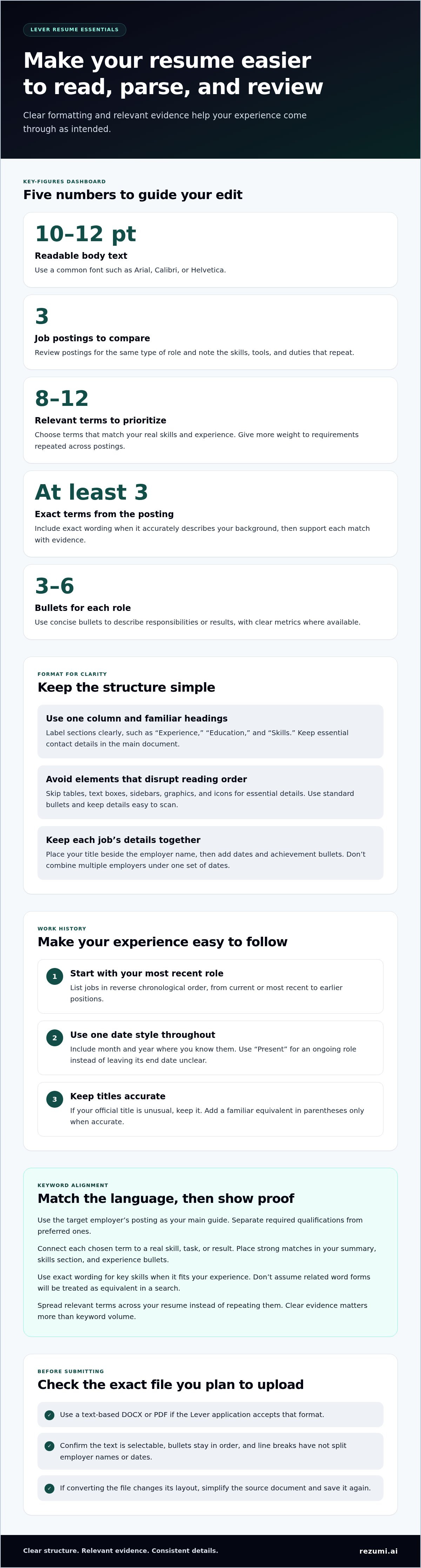
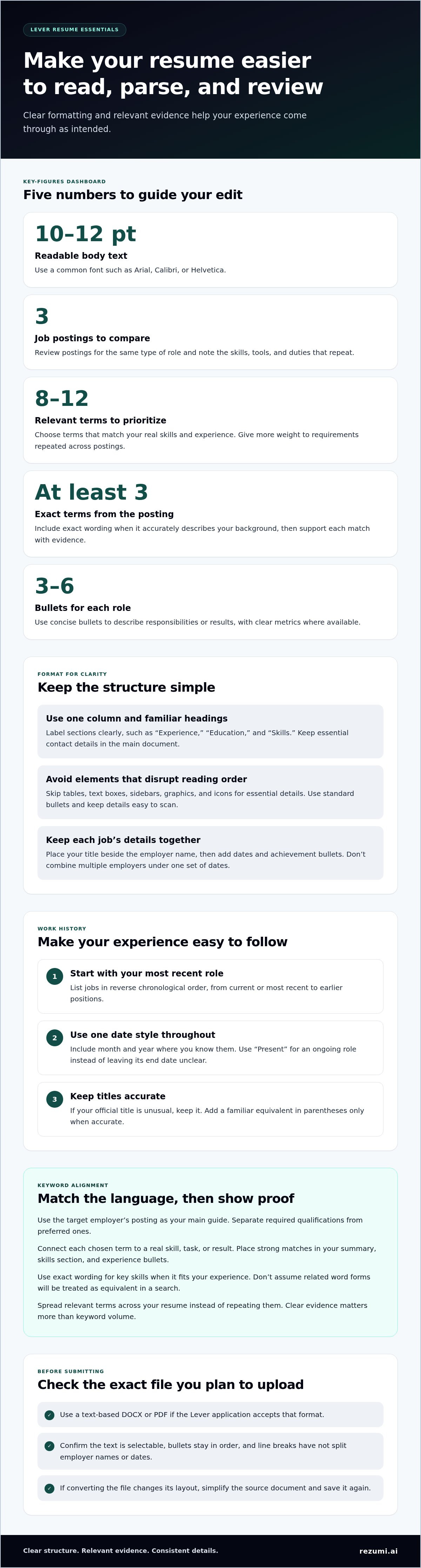
A strong resume can still be difficult for an applicant tracking system to read if its layout hides key details. Learning how to optimize a resume for Lever ATS starts with simple formatting: use clear section headings, consistent dates, and 10-12 pt body text in a common font. Then match relevant job-description terms to your real skills and explain your work history with concise, specific bullets.
It’s understandable to worry that software might miss your experience. An applicant tracking system (ATS) helps employers collect and organize applications, screen candidates, and manage hiring steps. A clear resume structure helps your qualifications come through as intended.
This guide explains how ATS software works and how to prepare a resume for Lever. You’ll learn to format each section, match relevant keywords to a job posting without stuffing them in, and make titles, dates, and achievements easy to read. Use these steps to create a resume that works for both the system and the hiring team.
Key Takeaways
- Use a clean layout, standard section headings, and readable fonts so your experience is easier to parse.
- Match relevant terms from the job description to your actual skills, then support them with clear examples.
- Make job titles, employer names, and dates consistent so your work history is easy to follow.
- Understand how an ATS organizes applications and supports screening throughout the hiring process.
- Review your resume’s structure and wording before submitting, then tailor it to the role you want.
ATS-friendly resume formatting
Use a simple, text-based layout so Lever can identify your experience, skills, and metrics accurately.
-
Choose an Accepted Resume File Format
Use a text-based DOCX or PDF if that format is accepted in the Lever application. Check the upload field’s options, then open your saved file and confirm the text is selectable. Scanned pages and image-based PDFs can store words as pictures, making them harder to extract. Keep a clean upload version instead of relying on a design that changes how the text is arranged.
-
Avoid Formatting That Disrupts Parsing
Build your resume in a single-column layout with standard section headings such as “Experience,” “Education,” and “Skills.” Avoid tables, text boxes, sidebars, graphics, and icons for essential details. These elements can separate a job title from its employer or place skills in an unexpected reading order. Use Arial, Calibri, or Helvetica at 10-12 pt for body text. Keep contact details in the main document, not only in a header or footer.
Keep bullet points concise and easy to scan. Use standard bullets, not decorative symbols, and avoid crowding unrelated details onto one line. Put your title, employer, and dates on separate lines or in clearly labeled fields. This helps preserve the structure when text is extracted.
-
Format Employment Dates and Work History
List roles in reverse chronological order, starting with your current or most recent position. Use the same date style throughout, such as “Jan 2022 to Mar 2024,” and apply it to every entry. Include the month and year where you know them. Write “Present” for an ongoing role, rather than leaving its end date unclear. Consistent dates help distinguish each position and show how your experience developed.
Place each job title beside its employer name, then add dates and achievement bullets. If your official title is unusual, keep it and add a familiar equivalent in parentheses only when accurate. Don’t combine multiple employers under one set of dates. For each role, use 3-6 bullets that describe responsibilities or results, with clear metrics where available.
-
Set a Clear Reading Order
Use a familiar resume order: contact details, summary, skills, experience, and education. Choose headings that describe each section directly. “Experience,” for example, identifies your work history more clearly than “My Journey.” Keep each section’s details together, and don’t place essential skills in a decorative banner.
-
Review the Saved File Before Uploading
Open the exact file you plan to submit. Make sure the text is selectable, bullets stay in order, and line breaks haven’t split employer names or dates. Confirm that the format matches the Lever upload options. If converting the file changes its layout, simplify the source document and save it again.
Natural keyword alignment with job descriptions
Use job-posting terms only when they accurately describe your skills and experience. A keyword match alone doesn’t determine how an employer will assess your fit. Screening questions and other review steps may also affect how your application moves forward.
-
Research Job-Description Keywords
Compare three postings for the same type of role, then note repeated skills, tools, and duties. Prioritize 8-12 terms that match your background, such as “SQL,” “forecasting,” or “client onboarding.” Give more weight to requirements repeated across postings than to one-off phrases. LinkedIn listings can reveal shared language, but use the target employer’s posting as your main guide.
Separate required qualifications from preferred ones. If a posting lists Excel and monthly reporting as core tasks, note both terms. To optimize your resume for Lever ATS, make a short keyword list before editing, then check each term against your actual experience. Don’t claim a skill just because it appears in the posting.
-
Align Keywords With Skills and Achievements
Connect each chosen term to a real skill, task, or result. If the posting asks for customer retention, describe a related action and outcome, such as using follow-up analysis to support renewals. Include metrics only when they reflect your actual work. A keyword without supporting evidence is less convincing.
Place strong matches in your summary, skills section, and experience bullets. Include at least three exact terms from the posting when they accurately describe your background. “Created SQL reports” is clearer than repeating “data-driven” without context. Add relevant education or training when it supports a listed requirement. This connects the language employers use with examples they can assess.
-
Account for Lever Keyword Search and Stemming
Use the posting’s exact wording for key skills, and include related forms when they naturally describe your work. Don’t assume an ATS will treat forms such as “analyze” and “analysis” as equivalent in a search. If a role names “project management,” include that phrase when accurate, even if another bullet says you “managed projects.”
Distribute relevant terms across your summary, skills, and experience instead of repeating a keyword to raise its frequency. A recruiter searching for “budget forecasting” needs context about where you used it. When optimizing your resume for Lever ATS, prioritize clear evidence over keyword volume. Each match should point to a task, tool, or result that reflects your work.
- Review your draft beside the job posting. Confirm key terms appear in readable sentences, and that each skill has evidence. For role-specific wording support, explore resume tailoring tools as part of your editing process.
Lever resume parsing and extracted candidate profile fields
Check that Lever has read your resume details correctly, not just that the document looks polished. Familiar section labels and a careful review of any populated fields can help keep your work history and achievements attached to the right information.
-
Use Clear Resume Section Headings
Use familiar section headings such as “Experience,” “Education,” and “Skills.” These labels help parsing software identify the information that follows. Replace creative headings such as “Where I’ve Been” with “Work Experience” to give job entries a recognizable context.
Keep each entry’s details together. Put the job title, employer, dates, and achievement bullets in one consistent block. For example, place “Project Coordinator” directly above “North Star Design” and the dates, rather than splitting those details across columns. Use bullets for duties and results, not tables for core resume content. This makes the connection between each role and its achievements clearer.
-
Test Parsing and Field Mapping
If Lever populates application fields from your resume, review each one. Compare the extracted name, email, phone number, job titles, employers, dates, and education with the original document. Field mapping means placing each detail in the correct profile field. Even if the name is right, an incorrect employer entry still needs fixing.
Review the application’s text preview as well as its form fields. Check that your most recent role appears as one entry, with the title, employer, dates, and bullets grouped correctly. If a field is blank or details are misplaced, note which resume section may need editing. This can help you identify whether the issue is wording, layout, or an unclear label.
-
Identify and Correct Parsing Errors
Look for specific errors, such as a phone number split across fields, dates attached to the wrong job, or skills appearing under education. These mismatches can make a candidate profile harder to scan. Compare the extracted details with the original resume line by line instead of assuming everything transferred accurately.
Fix the source of any mismatch, upload the revised file, and review the affected fields again. If “Operations Lead” appears as part of the employer name, put the title and company on separate lines. If an achievement appears under the wrong role, simplify the entry and keep its bullets beside that job. Recheck the changed fields, then scan the rest of the application for other errors.
Consistent job titles, company names, and dates
Keep each role’s title, employer, dates, and achievements consistent across your resume and application profile. This helps recruiters follow your work history without guessing which details belong together when you learn how to optimize resume for Lever ATS.
- Use the same job title throughout your resume and application. If your official title was “Client Success Partner,” don’t replace it with “Account Manager” without explanation. If the title is unfamiliar, add an equivalent in parentheses only when it accurately describes your duties. This preserves the original title while clarifying your role.
- Write each employer’s name consistently, including punctuation and common abbreviations. For example, don’t list “North Star Technologies” for one role and “Northstar Tech” for another if both refer to the same company. If the employer changed names while you worked there, use the name that fits your work history and briefly clarify the change.
- Choose one date style and use it for every position. For example, use a month and year for both start and end dates instead of mixing that format with a year alone. Mark a current role as “Present.” Consistent dates make each position’s timeline easier to follow, whether someone reads your resume or enters it into profile fields.
- Show promotions and roles at the same employer as separate entries when the title or duties changed. For example, list “Marketing Coordinator” and “Marketing Manager” under one company, each with its own dates and bullets. This makes career growth clear and keeps achievements attached to the right position.
- Compare your resume with the application profile as you apply. After uploading the file, check that the title, company, and dates appear in the correct fields. Fix any field that combines employers or assigns a date to the wrong role. Keep your resume and profile aligned, and use the same role details in your cover letter.
- Check that each work-history bullet belongs to the role it describes. Keep the employer, title, dates, and related achievements together; don’t move a result beneath another job to improve the page layout. For example, put a sales-growth bullet under the position where you achieved that result. This helps recruiters assess your experience accurately.
Applicant tracking systems are part of the hiring context for many employers: 99% of Fortune 500 companies use a best-in-class applicant tracking system as the foundation of their hiring technology stack. Tools like Rezumi can help you structure your application materials effectively. Integration capabilities are a consideration when choosing an applicant tracking system, so keep role details easy to identify and consistent wherever you enter them. Matching entries help maintain the same work-history information across a resume and an application profile.
Use clear section headings, avoid tables for core content, keep date formats consistent, and use bullets for responsibilities and achievements. Give each role a clear place in your work history, use the same date format throughout, and attach its responsibilities and results to the right title. A straightforward layout supports consistency without changing the underlying details. Before submitting, review your resume and profile together to make sure the information matches.
How applicant tracking systems work
An applicant tracking system does more than read resumes. It organizes applications and supports steps throughout an employer’s hiring workflow.
- Follow what happens after you submit an application. An employer’s system can add your resume and application details to a searchable candidate database, helping the hiring team review applicants, track progress, and revisit records. Lever is one example of an applicant tracking system used for this work.
- Distinguish resume parsing from candidate screening. Parsing converts resume text into structured details such as a name, work history, and skills. Screening uses application information or employer-defined criteria to help sort or review candidates. These steps are related, but not identical. A readable resume helps the system capture your details; the employer decides how to assess them.
- Applicant tracking software can support the wider hiring process. Employers may use it to create and approve job requisitions, publish postings, and collect applications. Hiring teams may then review applications, arrange interviews, gather feedback, manage approvals and offers, and report on hiring activity. The software supports these workflows rather than serving only as a resume scanner.
- Tailor your resume to the role, not to an imagined automatic score. A job description shows which skills and experience matter for that application. Match relevant terms to examples from your work, then make those examples easy to understand. For instance, connect “inventory planning” to a project or task you actually handled. A keyword without context gives the hiring team little information.
- Prepare for both the software and the people involved. Your resume should remain clear when converted to text, and your application answers should address the employer’s questions directly. If asked about a required skill, give a concise example of how you used it. After submitting, keep your resume and application details consistent so recruiters see a clear account of your experience.
Pair a clear resume with a tailored application using an AI-generated cover letter.
Applicant tracking systems are widely used: 98 percent of Fortune 500 companies use applicant tracking systems. Resume and application review and screening are features of an ideal applicant tracking system, helping hiring teams handle candidate information as part of their process. These functions do not mean every employer uses the same settings or evaluates every application in the same way. The system’s role is to support the employer’s workflow; applicants should still focus on presenting relevant experience clearly and answering application questions accurately.
The page claims that up to 75% of resumes never reach a human because of automated screening rules. That claim underscores why it can help to make role-relevant skills and experience easy to identify, while connecting them to concrete examples rather than relying on keywords alone. Applicant tracking systems can also support interview scheduling and collection of interview feedback, carrying information forward as candidates move through the process. Clear, consistent application materials can make it easier for the hiring team to understand a candidate’s background at each stage.
Rezumi: ATS Resume Optimization
Rezumi’s ATS Resume Optimization helps you tailor your resume to a specific role by aligning your experience with a job description and refining your wording. Use Resume Design & PDF Export to prepare your document, the AI Cover Letter Generator to draft a role-specific letter, and AI Interview Prep to practice your answers. These tools support your job search while keeping your skills and work history at the center.
Visit rezumi.ai to explore Rezumi’s resume and career tools.
Make Each Application a More Focused Step
Treat each application as a chance to connect your experience with a specific role. Optimizing your resume for Lever ATS isn’t about changing your background to fit every posting. It’s about presenting relevant skills clearly and making sure your examples support the requirements you choose to emphasize.
Before applying, read your resume as a recruiter might. Does each role show what you did and why it mattered? Do your strongest examples relate to the position you want next? A final review can help you catch unclear wording and keep your application consistent with your goals.
If you want help tailoring your resume, Rezumi’s ATS Resume Optimization can help you refine it for a role. You can also use its AI Cover Letter Generator and AI Interview Prep as you prepare your application and next steps.
Your experience is yours to shape into a clear, confident application. Take the next step when you’re ready.
Frequently Asked Questions
How Does an ATS Work?
An applicant tracking system organizes applications so employers can review candidates and manage hiring steps. After you submit an application, the system can store your resume and responses in a candidate record. For example, a recruiter may review your resume alongside your answer about relevant experience, then record interview feedback in the same workflow. The software supports the process, while employers set review criteria and make hiring decisions.
What resume file formats and file size limits does Lever ATS support?
Use a text-based DOCX or PDF if the Lever application accepts that format. Check the upload field’s options; no file size limit is provided.
Are there differences in Lever resume parsing for PDF versus DOCX files?
There’s no general parsing difference given between DOCX and PDF. Scanned or image-based PDFs can be harder to extract, so check that the text in your saved file is selectable.
Disclaimer
This article is provided for general informational purposes only and does not constitute professional, legal, financial, or career advice. While Rezumi strives for accuracy, we make no warranties as to the completeness or reliability of this content. Hiring practices, ATS behavior, and job-market conditions vary by employer, industry, and region — always verify against your specific situation. Any action you take based on this article is at your own risk.